
EVENTBINDER CAPTIONS · MAC & WINDOWS
Live captions for
your presentation.
Show speech and translations alongside your slides. Choose up to two caption languages and control the presentation from your laptop.
Slides stay on your computer. Live captions connect to EventBinder’s speech service.
 EventBinder CaptionsWORKSPACE PREVIEW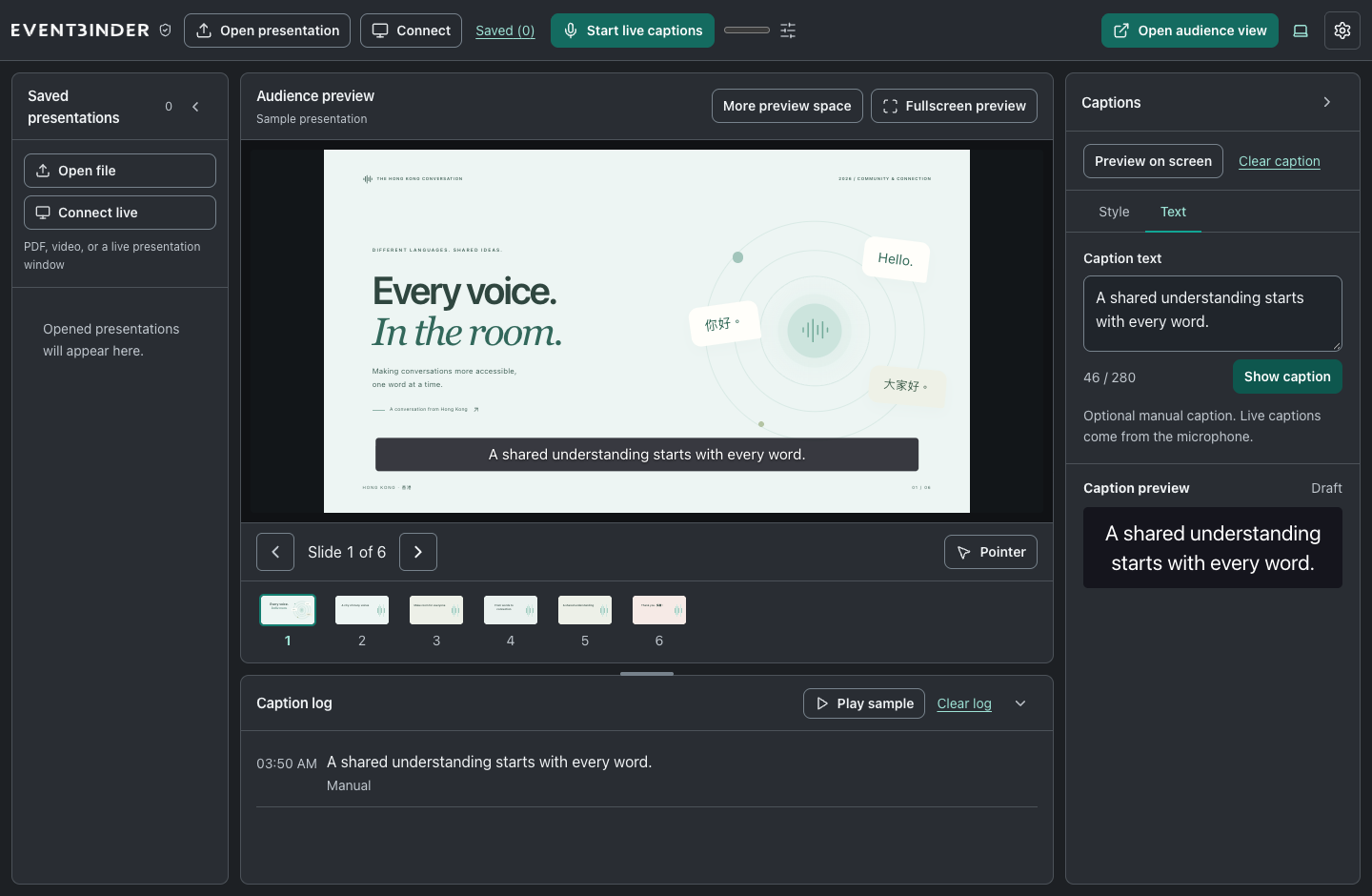
HOW IT WORKS
Set up in three steps.
Open your presentation, choose the languages, then start captions.
- 01
Open your presentation
Open a PDF or video, or share a PowerPoint, Keynote or browser slideshow window to keep its animations and media.
- 02
Set the languages
Choose the speaker’s input language and up to two caption output languages. Adjust the size, position and appearance.
- 03
Speak and present
Start the microphone and open the audience screen. Keep the controls on your laptop, or use another laptop on your network.
PRESENTATION CONTROLS
Slides, captions and controls.
Two languages, one screen
Show two caption languages at once, such as English and Traditional Chinese.
Flexible audience screens
Place captions over the slides or in a separate area. Adapt the layout to the screen you are using.
Separate presenter controls
See the presentation, microphone status and caption history while the audience sees only the presentation and captions.
GET EVENTBINDER CAPTIONS
Download EventBinder Captions.
Download the desktop app. Contact us to arrange a license and access to the speech service.
Preview installers are not yet code-signed. Windows installation still needs validation on a Windows PC. An active license and a connection to the EventBinder speech service are required for live captions.
View file sizes and SHA-256 checksumsCONTACT
Request a demo or license.
Email us with your event date, caption languages and whether you use Mac or Windows.
[email protected]For demos and licenses, email [email protected].
Open the form in a new window ↗Questions and answers.
Does it work offline?
Presentation files open locally on your computer. Live speech recognition and translation require an active license and a connection to EventBinder’s speech service.
What about PowerPoint animations and video?
Share the presentation window from PowerPoint, Keynote or your browser in the desktop app. This keeps the presentation playing in its original application. PDF slides are static.
Can another laptop control the presentation?
Yes. The operator can use the app’s controller link from another laptop on the same accessible network. Audience and controller screens do not need another license activation.
Can I show Traditional Chinese captions?
Yes. Choose Traditional Chinese as an output language, or combine it with another language using primary and secondary captions. The app interface also supports Traditional Chinese.